> For the complete documentation index, see [llms.txt](https://docs.shimoku.com/dev/llms.txt). Markdown versions of documentation pages are available by appending `.md` to page URLs; this page is available as [Markdown](https://docs.shimoku.com/dev/elements/charts/waterfall.md).
# Waterfall
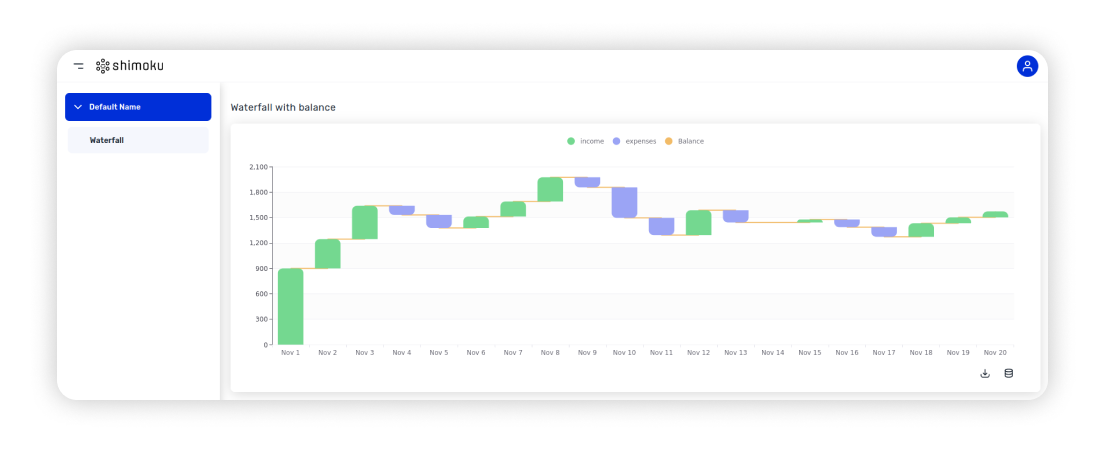
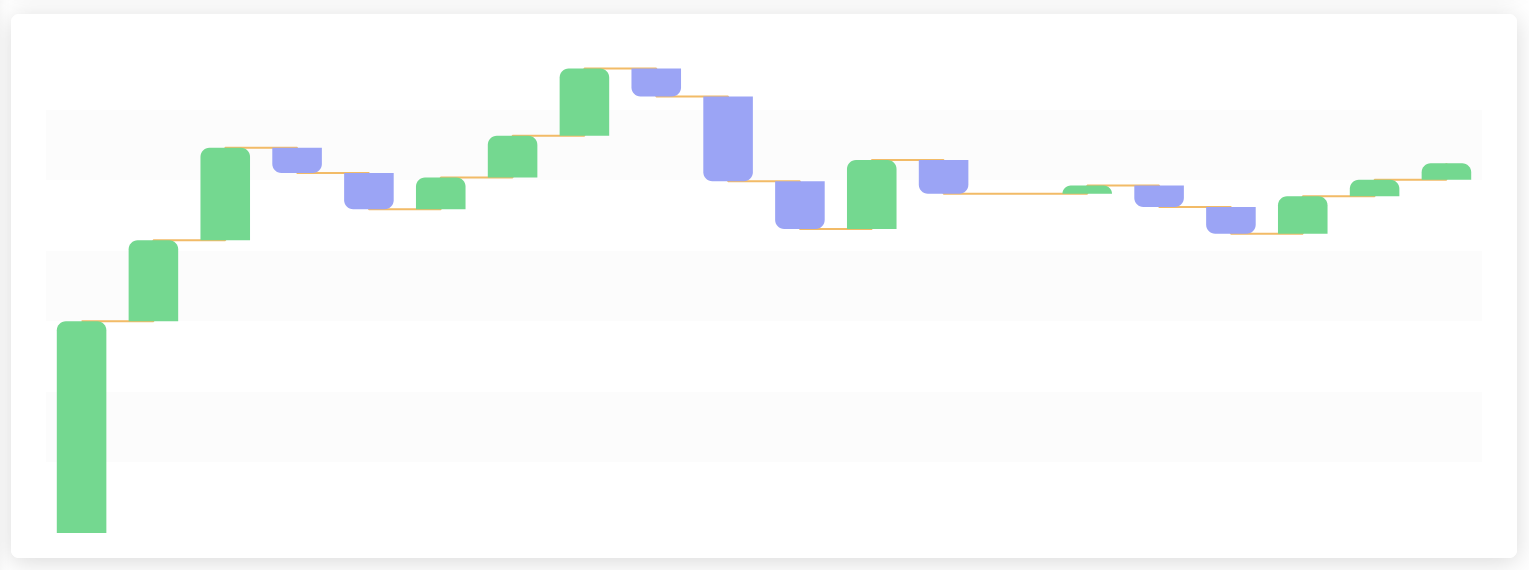
The Waterfall chart provides a visual representation of sequential data points, demonstrating the cumulative effect of sequentially occurring positive and negative values. It effectively showcases the step-by-step journey of a value, helping to highlight the major contributions or subtractions along the way. The visualization aids in understanding and analyzing the sequence of events or factors leading to a particular end value.
## The Method To Use
The method is `s.plt.line_and_bar_charts()`
It must contain the following input variables:
```python
data: Union[str, DataFrame, List[Dict]]
order: int
x: str
positive: str
negative: str
```
And accepts the following input variables as optional:
```python
rows_size: Optional[int] = None
cols_size: Optional[int] = None
padding: Optional[str] = None
title: Optional[str] = None
x_axis_name: Optional[str] = None
y_axis_name: Optional[str] = None
show_balance: bool = False
option_modifications: Optional[Dict] = None,
variant: Optional[str] = None
```
To generate a Waterfall Chart, your input should be structured as a list of dictionaries. Each dictionary represents a specific date and its corresponding income and expenses.
Here's the format:
```python
data = [
{'x': '', 'income': , 'expenses': },
...
]
```
**Key Components**:
1. **'x'**: Represents the date or any sequential point you want to plot. It should be in string format.
2. **'income'**: Represents the income for the corresponding date. It should be a positive numeric value. If there's no income for a specific date, input 0.
3. **'expenses'**: Represents the expenses for the corresponding date. It should be a positive numeric value, even though it's an expense. If there are no expenses for a specific date, input 0.
***
Once the input is structured in this format, it can be used to generate a Waterfall Chart that visually captures the sequential changes in profit or loss.
## Examples
Both examples use this dataset:
```python
data = [
{'x': 'Nov 1', 'income': 900, 'expenses': 0},
{'x': 'Nov 2', 'income': 345, 'expenses': 0},
{'x': 'Nov 3', 'income': 393, 'expenses': 0},
{'x': 'Nov 4', 'income': 0, 'expenses': 108},
{'x': 'Nov 5', 'income': 0, 'expenses': 154},
{'x': 'Nov 6', 'income': 135, 'expenses': 0},
{'x': 'Nov 7', 'income': 178, 'expenses': 0},
{'x': 'Nov 8', 'income': 286, 'expenses': 0},
{'x': 'Nov 9', 'income': 0, 'expenses': 119},
{'x': 'Nov 10', 'income': 0, 'expenses': 361},
{'x': 'Nov 11', 'income': 0, 'expenses': 203},
{'x': 'Nov 12', 'income': 450, 'expenses': 156},
{'x': 'Nov 13', 'income': 45, 'expenses': 189},
{'x': 'Nov 14', 'income': 0, 'expenses': 0},
{'x': 'Nov 15', 'income': 122, 'expenses': 87},
{'x': 'Nov 16', 'income': 65, 'expenses': 156},
{'x': 'Nov 17', 'income': 336, 'expenses': 450},
{'x': 'Nov 18', 'income': 560, 'expenses': 400},
{'x': 'Nov 19', 'income': 1200, 'expenses': 1130},
{'x': 'Nov 20', 'income': 3200, 'expenses': 3130},
]
```
The first example uses the basic configuration:
```python
s.plt.waterfall(
data=data, order=0, x='x',
positive='income',
negative='expenses',
)
```
The second example uses the balance:
```python
s.plt.waterfall(
data=data, order=0, x='x',
title='Waterfall with balance',
positive='income',
negative='expenses',
show_balance=True
)
```
## Variants
By setting the parameter `variant` to the following values the appearance of the chart can be changed:
{% tabs %}
{% tab title="Clean" %}
variant="clean"
{% endtab %}
{% tab title="Minimal" %}
variant="minimal"
{% endtab %}
{% endtabs %}
---
# Agent Instructions
This documentation is published with GitBook. GitBook is the documentation platform designed so that both humans and AI agents can read, navigate, and reason over technical content effectively. Learn more at gitbook.com.
## Querying This Documentation
If you need additional information that is not directly available in this page, you can query the documentation dynamically by asking a question.
Perform an HTTP GET request on the current page URL with the `ask` query parameter, and the optional `goal` query parameter:
```
GET https://docs.shimoku.com/dev/elements/charts/waterfall.md?ask=&goal=
```
`ask` is the immediate question: it should be specific, self-contained, and written in natural language.
`goal` is optional and describes the broader end goal you are ultimately trying to accomplish on behalf of the user. GitBook uses it to tailor the answer towards what is most useful for that goal.
The response will contain a direct answer to the question and relevant excerpts and sources from the documentation.
Use this mechanism when the answer is not explicitly present in the current page, you need clarification or additional context, or you want to retrieve related documentation sections.