> For the complete documentation index, see [llms.txt](https://docs.shimoku.com/dev/llms.txt). Markdown versions of documentation pages are available by appending `.md` to page URLs; this page is available as [Markdown](https://docs.shimoku.com/dev/quickstart/extended-example.md).
# Extended Example
Coding a bigger picture
## Aim
Taking into account the information displayed on the previous page, [Minimal APP example](/dev/quickstart/minimal-app-example.md), it is necessary to use a more developed implementation example that incorporates more features and functionalities in order to provide a broader selection of the platform capabilities.
***
## First Steps
Starting with the libraries, it is essential to be able to handle them so your program can use all the extensions and additional features it requires. Intuitively, the most important library to add is the one that enables all the Shimoku magic:
```python
from shimoku import Client
```
Next, you may want to use some operating system and environment libraries, with the aim of enabling different functionalities, such as defining [Environment Variables](/dev/building-web-app/environment/environment-variables.md).
```python
import time
import os
from os import getenv
from dotenv import load_dotenv
from io import StringIO
```
Finally, it is time to add all those commonly used libraries that provide technical extensions and features. For instance, these three are frequently used for a variety of purposes:
```python
import numpy as np
import pandas as pd
import sklearn as sk
```
## Authentication and Remote Access
In order to be able to use the Shimoku remote services, it is required to follow proper identification and create a Client object, using the Shimoku library.
If more guidance about the authentication process is needed, check the [Environment Variables](/dev/building-web-app/environment/environment-variables.md) section.
```python
load_dotenv() #load the .env file to acces your credentials
s = Client(
access_token=os.getenv("SHIMOKU_TOKEN"),
universe_id=os.getenv("UNIVERSE_ID"),
verbosity="INFO",
async_execution=True
)
s.set_workspace(uuid=os.getenv("WORKSPACE_ID"))
```
## Setting the Board
Boards are grouping elements ideal for optimal organization and structuring in a given universe. For more related information, check [Managing Boards](/dev/building-web-app/management/managing-boards.md) and [Managing Universes](/dev/building-web-app/management/managing-universes.md).
```python
s.set_board('Car company')
```
## Setting the Menu Path
Menus are pathways that help you distribute the content in a clear and understandable way in a given board. Defining them with a relevant name is crucial for working in a structured environment. More information about them can be found on [Menu](/dev/building-web-app/menu.md).
```python
s.set_menu_path(name="Sales Report")
```
## Reading Data
To access your data in a way that is maleable and optimal, use the `Pandas` library to import your file and convert it into a dataframe variable.
```python
dataframe = pd.read_csv("car_data.csv").to_csv(index=False).encode()
```
{% hint style="info" %}
Depending on the characteristics of your file, it may be necessary to add parameters like **delimiter** or **header**.
{% endhint %}
## Developing Your Features
Having set up the previous steps, you are ready to start developing your features, and showcasing them using Shimoku's powerful tools. In this example, some simple functionalities done on a car sales report will be showcased in the Shimoku.io site.
***
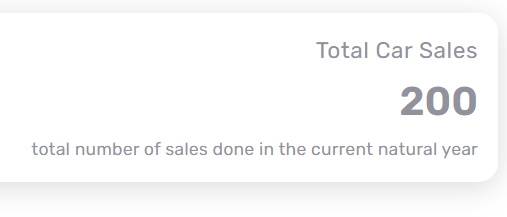
Firstly, some indicators can be created. They are ideal for simple information showcasing, for instance, the total number of cars that have been sold.
When creating an indicator, first, the data structure has to be created and, afterwards, it is as simple as plotting said indicator. Check [Indicators](/dev/elements/charts/indicators.md) for more guidance in this topic.
```python
total_sales = {
"description": "total number of sales done in the current natural year",
"title": "Total Car Sales",
"value": len(dataframe)
}
total_revenue = {
"description": "total revenue accomplished in the current natural year",
"title": "Total Revenue",
"value": dataframe['price'].sum()
}
s.plt.indicator(
data=total_sales, order=1,
rows_size=8, cols_size=12,
)
s.plt.indicator(
data=total_revenue, order=2,
rows_size=8, cols_size=12,
)
```
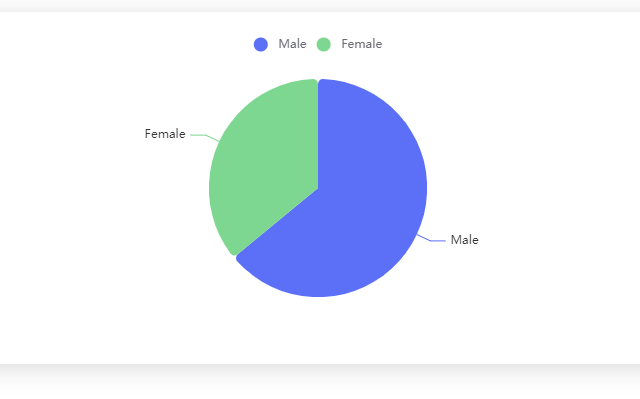
Next, it can be interesting to use a pie chart to highlight any information desired. There are many types of charts, each one best suited for different application. Have a look at all the different charts provided at [Charts](/dev/elements/charts.md).
## Using Bento Boxes
Bento box is a tool that enables us to create an intuitive separation between content by providing different shared spaces between plotted elements that have the same context.
It's simple usage only requires the user to set the Bento box space, plot the elements that are going to be placed inside and finally popping out of the Bento box. Take a look at the [Bento box](/dev/elements/create-your-own-charts/bento-box.md) for more related information.
## Using Tabs
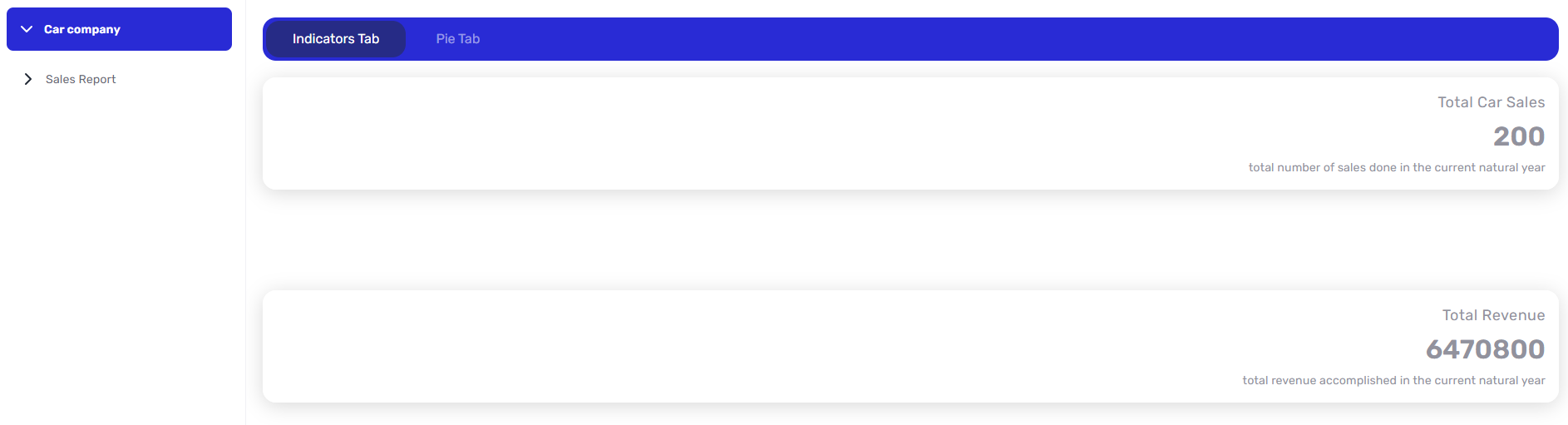
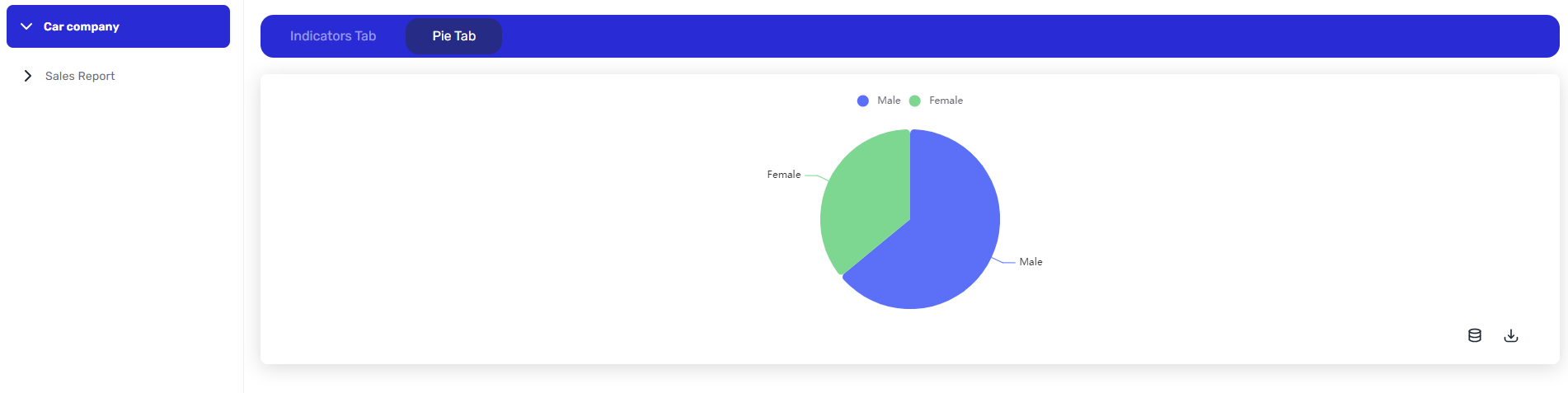
Tabs give the option to separate elements further by grouping them, and only showing the ones selected in that specific tab. Check [Tabs](/dev/elements/features-and-navigation/tabs.md) for further information.
```python
s.plt.set_tabs_index(('Charts', 'Indicators Tab'), order=0) #set tab box
s.plt.indicator(
data=total_sales, order=1,
rows_size=8, cols_size=12,
)
s.plt.indicator(
data=total_revenue, order=2,
rows_size=8, cols_size=12,
)
s.plt.change_current_tab('Pie Tab') #change tab
s.plt.pie(
data=gender_data, names='gender', values='value',
order=2, rows_size=2, cols_size=12,
)
s.plt.pop_out_of_tabs_group() #exit tab box
```
Indicators Tab selected
Pie Tab selected
## **Sharing Your Board**
Shimoku's sharing functionality transforms the way you incorporate analytics into web platforms, enabling you to deliver personalized insights to your audience and add significant value to your product offerings with minimal development efforts.
***
Update your persisted Board with the CLI in Shimoku Cloud to make it shareable.
```bash
> shimoku cloud update board --board {YOUR BOARD NAME OR ID} --is-public
```
Done!
Finally, to access the link through the Front End, you must click on the chain icon of your `board.`
You can find further information about our Shared boards by reading the [Shared links](/dev/cloud-and-community/shared-links.md) section.
---
# Agent Instructions
This documentation is published with GitBook. GitBook is the documentation platform designed so that both humans and AI agents can read, navigate, and reason over technical content effectively. Learn more at gitbook.com.
## Querying This Documentation
If you need additional information that is not directly available in this page, you can query the documentation dynamically by asking a question.
Perform an HTTP GET request on the current page URL with the `ask` query parameter, and the optional `goal` query parameter:
```
GET https://docs.shimoku.com/dev/quickstart/extended-example.md?ask=&goal=
```
`ask` is the immediate question: it should be specific, self-contained, and written in natural language.
`goal` is optional and describes the broader end goal you are ultimately trying to accomplish on behalf of the user. GitBook uses it to tailor the answer towards what is most useful for that goal.
The response will contain a direct answer to the question and relevant excerpts and sources from the documentation.
Use this mechanism when the answer is not explicitly present in the current page, you need clarification or additional context, or you want to retrieve related documentation sections.